
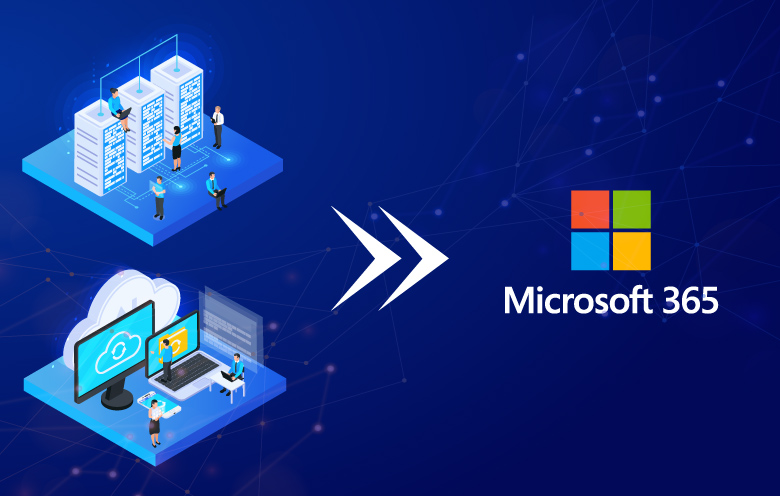
A practical overview of how Robinson Technology plans and delivers Microsoft 365 migrations for small and medium businesses, with a focus on continuity, security, and a smooth handover for staff.
This type of project usually includes reviewing the current email setup, preparing Microsoft 365 accounts, planning mailbox and file moves, tightening security settings, and supporting users through the change. The goal is to reduce disruption while giving the business a more manageable and secure platform.
Planning a Microsoft 365 Move?
Need help with a current project or want to discuss ongoing support? Start with a quick enquiry today.
Introduction
Scope
Migrate Users Accounts, Emails, User files and Shared Files to the Microsoft 365 Cloud Environment.
Possible scenarios
→ Migrating to 365 for the first time from traditional on-premise or local environment
→ Migration from one 365 tenancy to a new one
→ Company/Business Sale or + split
On Premise to Cloud reference chart
| On Premise | Moving to | Cloud |
| AD/Local Account/Personal Microsoft account | → | AzureAD/365 Admin |
| Exchange/ Personal Emails | Exchange online | |
| Shared files | SharePoint | |
| User Files | One Drive |
Considerations:
→ This process assumes that the users will be keeping the same machines during the migration but can also be used if rolling out new machines with minor changes.
→ This Process assumes that users do not need need to take any actions themselves.
→ Migration should be planned to be completed outside of business hours to minimize any disruption, usually over a weekend. But depending on the amount of data you may need to complete some tasks during business hours while still completing the domain migration afterhours.
→ Ensure you confirm you have local admin access on all machines prior to starting migration
→ You may need to temp turn off MFA on accounts or use temp number/MFA app so that they can be setup without user interaction and then turned back on after Migration
→ Ensure that users are either signed into Chrome or browser Favourites and passwords will need to be exported manually
Step 1. Preparation – Work completed prior to Migration (BUSINESS HOURS)
→ Communicate upcoming changes to all users with clear timeline advising what is changing
→ Identify Primary domain
→ Identify any secondary domains
→ Export list of User Accounts, Shared Mailboxes, Distribution lists and Groups from current on prem environment
→ Provide client with exported list and confirm what is still required
→ Confirm if any Groups can be better created as new Office groups to include additional functionality e.g. 365 Group creates for HR team that also creates a SharePoint Site and Teams Group
→ Ensure that there is a master list including all User Accounts, Shared Mailboxes, Distribution lists and Groups confirmed by client
→ Confirm required data that will need to be uploaded to SharePoint and the corresponding Site/Groups that need to be created > create master list that is approved by client
→ Initially setup 365 environment with no domain
→ Audit current mailbox sizes to ensure that they are no to large for the new environment
→ Create 365 Accounts,
→ Create 365 User Accounts, Shared Mailboxes, Distribution lists and 365 Groups
→ Create SharePoint Sites (if not created with 365 Groups)
→ Ensure you have preemptively created, recorded and then provided users new temp passwords advising they will need to update when they first login after the Migration, Client may want team leaders to be provided the passwords to be then given to users.
→ If users are currently using a personal or alternative One Drive/SharePoint site that is being migrated, make sure all data is actually sync’d to local machine, if there is much data you will need to export onto larger local storage from temp transfer
Step 2. 365 Migration and Local machine setup (AFTER HOURS)
2.1 365 Admin console
→ Add primary domain in 365 and update DNS record with domain provider
→ Ensure that default domains for user accounts have been updated
→ Send test email to and from email account (webmail)
→ Add any secondary domains
→ Create any additional email alias required with secondary domains
2.2 Locally on machines
→ Login into existing windows profile and export emails into .PST backup file (including required shared mailboxes)
→ After PST export is complete Join machine to AzureAD / log in with 365 accounts
→ Open outlook and initially configure, add any missing shared mailboxes (should auto add)
→ Import PST files into Outlook
→ Add user auto signatures
→ If user data was stored locally transfer data from old profile/old temp locations to new windows profile (location that is syncing to One Drive)
→ Ensure One Drive is signed in and syncing data
→ Add any required SharePoint sites to One Drive client
2.3 Migrate Shared Files
→ Upload local Shared Files to SharePoint Site:
→ Manual – complete in web browser completing in batches to minimize any possible errors
→ SharePoint Upload Tool – Official Microsoft tool
→ Paid SharePoint Upload tool – Fast but expensive
→ If required migrate files from external SharePoint to new SharePoint
Step 3. Day after Migration – Floor walking
→ The first trading day after the migration ensure that you are available onsite to assist with any issues
→ Turn on/Update MFA for accounts again and assist users to setup
→ Assist users sign into chrome again or assist with importing favourites and passwords into browser
Step 4. Post Migration
→ Advise the users that they will have 2 weeks to report any missing email data or files.
→ After the 2 weeks has passed:
→ delete the old windows profile on the machines to clear up drive space
→ decommission on old on-premise servers no longer required
Key Outcomes for the Business
Better collaboration
Microsoft 365 brings email, calendars, file sharing, and teamwork tools into one connected environment that is easier for staff to use day to day.
Improved security
Modern authentication, account controls, and policy-based protection help reduce risk compared with older or loosely managed systems.
Simpler support
A standardised cloud platform makes ongoing administration, troubleshooting, and future growth easier for both the business and support provider.
Leave a Reply