
Author: robinsontechnology

  • Going against the grain, the arguments against some modem IT approaches

    Going against the grain, the arguments against some modem IT approaches

    Some common-sense arguments that go against the current industry norms. We do not necessarily recommend these approaches but for those who wish to swim against the current and go their own way these are the justifications you would make.

    Local account vs Microsoft account sign in

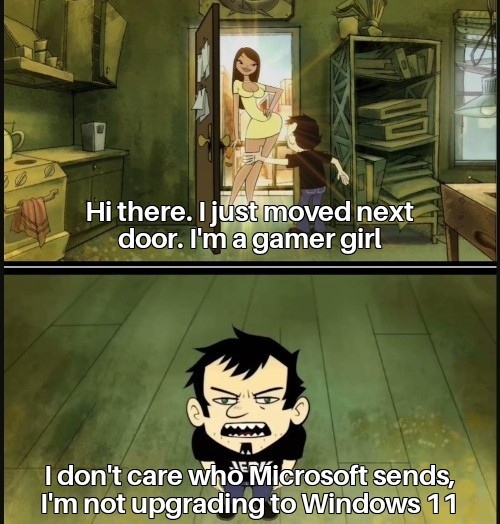
    Every new Microsoft OS revision, Microsoft makes it harder and harder for people to use local accounts to sign into Windows.

    Using a Microsoft account has many benefits but essentially means that your OS is linked directly to your personal identity rather than a machine that can be used anonymously at least on a fundamental OS level.

    It’s a similar argument if:

    you think you should be able to use your car with your physical key(or Key FOB) without signing into a car manufacturers login screen linked to online authentication.

    See the below Pro’s and Con’s of using a local account vs Microsoft Account, this is from a home user perspective but could be a very similar argument for on premAD vs AzureAD.

    Local account Pros

    → Sign in activity is not being monitored by Microsoft.

    → If you do not sign into Microsoft services then there is no way for Microsoft to link you to your OS.

    → You do not need the internet to sign into your machine

    → If you need to give your computer password to someone you are not giving your Microsoft account password at the same time

    Microsoft Account sign in Pros

    → Password can be reset via internet rather then just locally.

    → You can remotely manage aspects of your machine.

    → You can upload your bitlocker key to the cloud for easy reference
    Local Drive encryption

    Previously when a critical component failed and your HDD or SDD survived you could easily retrieve your data by simply copying the files to another machine, with the introduction of bit locker drive encryption this is no longer the case.

    Now this doesn’t matter if you have the bit locker decryption key and it is sync’d to your Microsoft account, which is recommended by Microsoft. But in the real-world things that sounds easy and simply are rarely so. In the real world for one reason or another you might not have this decryption key and even though you physically have the drive your data is lost.  

    The question you have to ask yourself is the security worth not being able to have your data easily accessible if you physically have access to the drive. Local drive encryption stops someone from accessing the drive data if they physically have it in their hand not if it is stolen digitally from a breach.

    So, you as an individual or business need to weigh ups the risk vs reward.

    Not encrypting risk

    Scenario: Risk of physical theft/ accidentally lost device and someone breaches Windows OS account password to maliciously steal and use data.

    Likely outcome: Low risk of data breach. Most often in the real world the person who steals or finds the machine is no interested or doesn’t have the skills to crack a windows password and their main objective is to sell the device and wipe it so it can be used again

    Encrypting risk

    Scenario: The machine suffers a technical issue or hardware failure and the data needs to be retrieved but the bit locker key is lost.

    Likely outcome: High risk of data loss, bit locker cant be be cracked unless you are a government spy agency.

    Another way to phrase it, is how often is the cause of data breaches because of a physically stolen or misplaced drive vs how many come from digital data breaches,

    I argue that it’s a 10 to 1 ratio.  While the risk that something accidentally happens to your machine and you need to retrieve data but do not have a decryption key is much more likely in the real world.

    Is data security so important for your business or required for regulatory reasons that the risk of losing data is worth the extra operational hinderance that local drive encryption introduces. This is a none debate for sensitive industries such as defense, finance, health or if you have state secrets but the same universally isn’t true for a vast number of individuals and businesses.

    The argument for writing down passwords on a physical piece of paper

    Do not write your password on a piece of paper, only use a password safe.

    This has been a universal rule in IT since the dawn of time, do not write credentials on physical paper.

    But I have a question for you, what is more like to happen these days, someone stealing your personal information digitally store in the cloud via a IT security breach, or someone breaking into your house to steal your physical birth certificate?

    In this modern age its no longer a crazy question to ask what is more secure, something that is stored digitally or a piece of paper in your bottom draw? Something that can theoretically can be hacked or compromised, or a random piece of paper at in your home office buried in other equally sensitive documents such as your birth certificate?

    One you have no control over and the other is a location that someone would have to physically find. The question might be easy if you are a spy or have state secrets where bad actors will plan a sophisticated heist on your home or business. But the long recognized best practice approach to not write the credentials a piece of paper but to store them digitally is arguably not the most secure approach in a totally digital world.  

    Now I am not advocating for passwords to be kept on a piece of paper directly in front of your machine, but even then, realistically ask yourself in modern times what is truly more at risk, your home office desk or a password stored digitally that one way or another can be compromised.

    At least one option requires physical real-world access to your property.  

    Now even with this new logic it is never a good idea wrote down really sensitive passwords like your internet banking or main computer password on paper easily accessible in your house but we also wouldn’t recommend keeping things like that stored in your browser either.  

    We really just need a common-sense approach rather then just an inflexible statement advising not to write passwords on paper physically. In some ways physically storing the password on paper could be more secure in many ways.

    The argument against migrating all data to cloud platforms
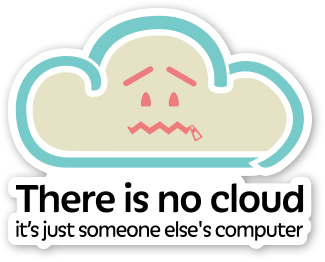
    Using One Drive and SharePoint is convenient and has quickly become the industry standard for storing business files as it offers flexible connectivity that is not depended on a single physical resource that could fail. But the flip side is that you loose control and sovereignty of your data some negatives include:

    → If you do not have local cache of the data and the internet or the service itself experiences any issues then you will be unable to access your data, if global conflict breaks out you could lose access

    → Whatever the provider says they physically have your data and it is possible for them to use that data for their own uses (e.g. to train AI models)

    → Data stored overseas may be subject to international jurisdictions loosing your data sovereignty  

    → The cost to host this data could increase throughout time and there is a possibility to become trapped in the platform/ eco system and have no choice but to pay ever increasing higher prices

  • Project Overview – Migrating to Microsoft 365

    Project Overview – Migrating to Microsoft 365

    A practical overview of how Robinson Technology plans and delivers Microsoft 365 migrations for small and medium businesses, with a focus on continuity, security, and a smooth handover for staff.

    This type of project usually includes reviewing the current email setup, preparing Microsoft 365 accounts, planning mailbox and file moves, tightening security settings, and supporting users through the change. The goal is to reduce disruption while giving the business a more manageable and secure platform.

    Planning a Microsoft 365 Move?

    Need help with a current project or want to discuss ongoing support? Start with a quick enquiry today.

    Introduction

    Scope

    Migrate Users Accounts, Emails, User files and Shared Files to the Microsoft 365 Cloud Environment.

    Possible scenarios

    → Migrating to 365 for the first time from traditional on-premise or local environment

    → Migration from one 365 tenancy to a new one

    → Company/Business Sale or + split

    On Premise to Cloud reference chart

    On PremiseMoving toCloud
    AD/Local Account/Personal Microsoft accountAzureAD/365 Admin
    Exchange/ Personal EmailsExchange online
    Shared filesSharePoint
    User FilesOne Drive

    Considerations:

    → This process assumes that the users will be keeping the same machines during the migration but can also be used if rolling out new machines with minor changes.

    → This Process assumes that users do not need need to take any actions themselves.

    → Migration should be planned to be completed outside of business hours to minimize any disruption, usually over a weekend. But depending on the amount of data you may need to complete some tasks during business hours while still completing the domain migration afterhours.

    → Ensure you confirm you have local admin access on all machines prior to starting migration

    → You may need to temp turn off MFA on accounts or use temp number/MFA app so that they can be setup without user interaction and then turned back on after Migration

    → Ensure that users are either signed into Chrome or browser Favourites and passwords will need to be exported manually

    Step 1. Preparation –  Work completed prior to Migration (BUSINESS HOURS)

    → Communicate upcoming changes to all users with clear timeline advising what is changing

    → Identify Primary domain

    → Identify any secondary domains

    → Export list of User Accounts, Shared Mailboxes, Distribution lists and Groups from current on prem environment

    → Provide client with exported list and confirm what is still required

    → Confirm if any Groups can be better created as new Office groups to include additional functionality e.g. 365 Group creates for HR team that also creates a SharePoint Site and Teams Group

    → Ensure that there is a master list including all User Accounts, Shared Mailboxes, Distribution lists and Groups confirmed by client

    → Confirm required data that will need to be uploaded to SharePoint and the corresponding Site/Groups that need to be created > create master list that is approved by client

    → Initially setup 365 environment with no domain

    → Audit current mailbox sizes to ensure that they are no to large for the new environment

    → Create 365 Accounts,

    → Create 365 User Accounts, Shared Mailboxes, Distribution lists and 365 Groups

    → Create SharePoint Sites (if not created with 365 Groups)

    → Ensure you have preemptively created, recorded and then provided users new temp passwords advising they will need to update when they first login after the Migration, Client may want team leaders to be provided the passwords to be then given to users.

    → If users are currently using a personal or alternative One Drive/SharePoint site that is being migrated, make sure all data is actually sync’d to local machine, if there is much data you will need to export onto larger local storage from temp transfer

    Step 2. 365 Migration and Local machine setup (AFTER HOURS)

    2.1 365 Admin console

    → Add primary domain in 365 and update DNS record with domain provider

    → Ensure that default domains for user accounts have been updated

    → Send test email to and from email account (webmail)

    → Add any secondary domains

    → Create any additional email alias required with secondary domains

    2.2 Locally on machines

    → Login into existing windows profile and export emails into .PST backup file (including required shared mailboxes)

    → After PST export is complete Join machine to AzureAD / log in with 365 accounts

    → Open outlook and initially configure, add any missing shared mailboxes (should auto add)

    → Import PST files into Outlook

    → Add user auto signatures

    → If user data was stored locally transfer data from old profile/old temp locations to new windows profile (location that is syncing to One Drive)

    → Ensure One Drive is signed in and syncing data

    → Add any required SharePoint sites to One Drive client

    2.3 Migrate Shared Files

    → Upload local Shared Files to SharePoint Site:

    Manual – complete in web browser completing in batches to minimize any possible errors

    SharePoint Upload Tool – Official Microsoft tool

    → Paid SharePoint Upload tool – Fast but expensive

    → If required migrate files from external SharePoint to new SharePoint

    Step 3. Day after Migration – Floor walking

    → The first trading day after the migration ensure that you are available onsite to assist with any issues

    → Turn on/Update MFA for accounts again and assist users to setup

    → Assist users sign into chrome again or assist with importing favourites and passwords into browser

    Step 4. Post Migration

    → Advise the users that they will have 2 weeks to report any missing email data or files.

    → After the 2 weeks has passed:

    delete the old windows profile on the machines to clear up drive space

    → decommission on old on-premise servers no longer required

    Key Outcomes for the Business

    Better collaboration

    Microsoft 365 brings email, calendars, file sharing, and teamwork tools into one connected environment that is easier for staff to use day to day.

    Improved security

    Modern authentication, account controls, and policy-based protection help reduce risk compared with older or loosely managed systems.

    Simpler support

    A standardised cloud platform makes ongoing administration, troubleshooting, and future growth easier for both the business and support provider.

  • Windows clean install process

    Windows clean install process

    Overview of the process used to re-install a Windows Operating System and the information required to make it as smooth and seamless experience as possible.

    What is a Clean install?

    A clean install resets your computers operating system to a new installation. It’s essentially like getting your computer back brand new as fast as when your first purchased it, free of any issues.

    We will also physically clean the internal components of your machine to improve your machines life and efficiency.

    Why would you get a clean install?

    You may choose to get a clean install to resolve software issues or just generally speed up your machine. A clean install is the ultimate reset to a clean slate with your machine.

    This will resolve all software issues you may have and give you a clean slate with everything functioning as optimal as possible.

    Diagnostics

    As part of the clean install process, we will test the most common components for hardware faults, this is to ensure that there aren’t underlying hardware issues prior to commencing work. This is to ensure that we aren’t wasting your time and money fixing the wrong issue.

    We will test your:

    →RAM

    →HDD/SSDs

    If no fault is found then the diagnostics time is included for free.

    If a fault is found we will provide you a quote to replace the hardware / undertake the warranty process. If you choose not to proceed you will need to pay a 1 hour labor charge for diagnostics and a fault report ($110). 

    With VS Without data clean install

    You do not keep your old data

    You will get a entirely fresh machine with none of your personal data or applications, this will be like getting the machine brand new out of the box, you will need to setup everything yourself again.

    You would like your old data transferred to your new Windows installation

    We will transfer your files and install your most Important applications onto the machine, this is like getting a new machine but with all your things loaded back into it.

    Cost

    We charge a flat rate for a clean install when completed in our workshop. The process may take longer but we do not charge for the extra workshop time.

    Without Data2 Hours – $220
    With Data3 Hours – $330
    Moora Onsite call out fee$50
    Northern Perth Metropolitan call out fee$100

    Call out fee includes 30 mins of setup time onsite to physically setup the machine and install any additional hardware such as printers.

    Any additional onsite time is chargeable.  

    Keeping your data

    If you choose to transfer your old data you must recognize that we will re-install the machine to a fresh state and while we will restore your data and personalize your machine again, you will need to setup some things again yourself.

    Important: If you would like us to transfer data we will need to turn of local encryption of your drives.

    To ensure the data transfer process runs as smoothly as possible you will need to provide the below information:   

    My Documents and Desktop (this includes default My Picture, My Video and My music locations)Yes/No
    Downloads folderYes/No
    Browser favoritesYes/No
    Passwords stored in browserYes/No
    Email applicationOutlook / Other: ___________________
    Is there non-standard Local email backups such as PSTsYes/No   If Yes details:____________________________  
    Is there custom Word or Office 365 Templates?Yes/No
    One DriveYes/No
    SharePointYes/No
    Is there any data stored in not standard locations on your machine you would like to be transferred? (Outside of the standard My Docs Locations already specified)Yes/No   If Yes Location or name: ___________________
    Do you have any professional application data that needs to be transferred? (e.g. Adobe, AutoCAD)Yes/No   If Yes details:____________________________  
    Is there any other important data not outlined in the above questions that you need ?Yes/No   If Yes details:____________________________  

    Backing up your data

    If you do choose to transfer your data as part of the clean install we will take a snap shot backup of your machine exactly as it was before we touch it, that we will keep for 1 month. This means that any data that might have been missed as part of the data transfer can be restored, or if there a critical issue your machine can be restored to the same state it was prior to us touching you machine.  

    Important: You must tell us if you need some data restored within 30 days of receiving your machine

    Email credentials & Licensed software

    It is Critical that you check that you have your login credentials or activation keys for important software and platforms that you use before starting a rebuild.

    You will need to provide us these details to re-install any required software, otherwise you will need to setup and install these applications yourself.

    This includes:  

    • Email account
    • Gaming platforms
    • Traditional licensed applications ( e.g. Office 2019 )
    • Professional platforms such as Adobe or AutoCad

    Important: We strongly suggest you to log into the web portal for these services prior to starting a clean install to ensure you can access the services.

    If you would like us to installed licensed applications you will need to provide us with your credentials/license keys, we may need to contact you to confirm MFA.    

    Do you use a Microsoft account for your emails?Yes / No  
    Non Microsoft accounts
    Email provider name: 
    Email provider credentials:U/n:_______________________________________ P/w:_______________________________________
    Other applications or platforms
    Would you like any internet browsers  beside MS Edge installed ? e.g. Chrome or firefox, please specify 
    Please specify any other important applications you would like to be installed onto your machine: 
    Please include any credentials or license keys required to install applications: 

    Microsoft Windows Licenses and Window/365 account

    Windows license: Windows will be reinstalled with your OEM or manufacturers included version of Windows; this is usually preloaded on your motherboard or on a sticker on your machine. If no license is specified then an unlicensed version of windows will be installed.

    Windows Account: You will need to provide us your Microsoft Account/ 365 credentials if you would like us to sign your Microsoft account and installed 365 applications on the computer. If no credentials are provided, we will install a local windows account that does not require the internet to login. You will then need to sign into the Microsoft account yourself.

    Would you like to us to login to your Microsoft account for setup ?
    Yes – Please provide login credentials below: U/n:_______________________________________ P/w:_______________________________________No – Please use a local account that doesn’t require internet authentication.
    If Yes please answer the below questions:
    Have you logged into https://account.microsoft.com/account to test your credentials?Yes/No
    Do you have Microsoft 365 desktop applications associated to your account that need to be installed? (e.g. Outlook, Word, ext)Yes

    Security Considerations

    It is very fair if you would not like us to provide us with your credentials and this is preferred from a security standpoint, but if you would like us to setup services that require credentials and need our assistance to setup these in person rather then in our workshop then there will usually be a higher labour fee. (usually about an hour extra)

    Any credentials provided to us are stored securely and destroyed after use, we recommend that you change your passwords after the clean install process for security hygiene.

    Bloatware

    As part of the clean install we will remove any software that is not required for your computer to operate, this may include any additional software installed by your manufacturer that is not strictly required for your computer and slows down your machine.

    We will also install VLC, which is a universal video player application that will play any video file type regardless of any restrictions.

    In addition, we can setup your machine with the following windows features disabled to speed up your machine if you nominate (optional):

    DescriptionTick to select
    Disable Microsoft Cortana/ Co Pilot  
    Disable reminders to Set Microsoft Edge as default browser  
    Disable One drive   
    Turn off fast startup (this means when you select restart your machine will actually properly restart, rather than resuming a sleep state)  

    Onsite Checklist Setup checklist

    Checklist of action items after OS re-installation, initial Windows setup and updates.

    Action itemConfirmation
    Physically setup and connect to network☐ done       
    Login into Microsoft account on computer☐ done        ☐ n/a
    Install office 365 desktop applications and activate☐ done        ☐ n/a
    Setup Email☐ done        ☐ n/a
    Import email backup files☐ done        ☐ n/a
    Setup email signature☐ done        ☐ n/a
    Sign into One Drive/ Sync SharePoint☐ done        ☐ n/a
    Setup Printer/scanner☐ done        ☐ n/a
    Installed additional web browsers☐ done        ☐ n/a
    Import browser shortcuts☐ done        ☐ n/a
    Sign into Browser☐ done        ☐ n/a
    Import usernames/passwords☐ done        ☐ n/a
    Professional / Non-standard Additional application install and setup☐ done        ☐ n/a
  • What Reliable Local IT Support Looks Like for Homes and Small Businesses

    Technology Help That Fits Real Life

    When technology works well, it quietly supports your day. When it does not, it can interrupt work, slow communication, and create unnecessary stress at home or in the office. Robinson Technology provides practical local IT support designed to solve problems quickly and keep systems running smoothly.

    For many households and small businesses, the biggest challenge is not just one broken device. It is the ongoing need for dependable support, clear advice, and someone who can help with everything from setup and maintenance to troubleshooting and long-term planning. That is where responsive local service makes a real difference.

    Common Problems We Help Solve

    • Slow computers and devices that interrupt daily work
    • Wi-Fi and network issues that affect reliability
    • Email, software, or account setup problems
    • New device installation and secure configuration
    • Ongoing maintenance to reduce future disruptions
    • Managed support for businesses that need consistent IT help

    Why Local Support Matters

    Working with a local IT provider means getting help from someone who understands the needs of nearby clients and values long-term relationships. Instead of generic advice or delayed responses, you get support that is personal, practical, and focused on what will work best for your situation.

    Good IT support is not only about fixing problems. It is about helping people feel confident that their technology is dependable.

    Support for Home and Business

    Robinson Technology supports both homeowners and businesses with a friendly, professional approach. Whether you need help setting up a new computer, improving your network, resolving a persistent issue, or exploring managed services for your business, the goal is the same: dependable support that keeps technology simple and useful.

    When to Reach Out

    If you are dealing with recurring issues, planning a technology upgrade, or simply want more reliable support, now is a good time to get help. A proactive approach can save time, reduce frustration, and prevent small issues from becoming larger ones.

    Robinson Technology is here to provide dependable local IT support for homes and businesses with practical solutions and responsive service.